Guide · Panes & windows
tmux panes and windows: split, resize, zoom, swap and close
A pane is one terminal inside a tmux window. Split the current pane left and right with Ctrl+b % or top and bottom with Ctrl+b ", move between panes with Ctrl+b ← and the other arrows, zoom one with Ctrl+b z, and close it with Ctrl+b x.
On this page
- Pane and window keys at a glance
- How to split a pane
- How to move between panes
- How to resize panes
- How to zoom a pane to full screen
- How to close a pane (kill pane, unsplit)
- How to swap and rotate panes
- How to break, join and move panes
- tmux pane layouts
- Pane numbers and pane titles
- Synchronize panes: type in all panes at once
- Panes with the mouse
- Windows: create, rename, switch and close
- Move, swap and renumber windows
- Floating panes (tmux 3.7 and 3.8)
- Frequently asked questions
Quick answer
The pane keys you will use every day
| Keys | Does | Command |
|---|---|---|
| Ctrl+b % | Split left / right | split-window -h |
| Ctrl+b " | Split top / bottom | split-window -v |
| Ctrl+b ← Ctrl+b → Ctrl+b ↑ Ctrl+b ↓ | Move to the pane in that direction | select-pane -L/-R/-U/-D |
| Ctrl+b z | Zoom the pane to full window and back | resize-pane -Z |
| Ctrl+b Ctrl+← | Resize by 1 cell (any arrow; Ctrl+b Alt+← for 5) | resize-pane -L |
| Ctrl+b x | Close the pane (asks y/n) | kill-pane |
The prefix is Ctrl+b: press it, let go, then press the key. With the mouse on (the default in tmux 3.8), you can also click a pane to select it and drag a border to resize.
Pane and window keys at a glance
Choose your prefix and every key on the page follows. The complete list, including floating panes and copy mode, is on the cheat sheet.
Panes
| Ctrl+b % | Split left / right |
| Ctrl+b " | Split top / bottom |
| Ctrl+b ← etc. | Select the pane in a direction |
| Ctrl+b o | Next pane |
| Ctrl+b ; | Last (previous) pane |
| Ctrl+b q | Show pane numbers; press one to jump |
| Ctrl+b z | Zoom / unzoom |
| Ctrl+b Ctrl+↑ etc. | Resize by 1 |
| Ctrl+b Alt+↑ etc. | Resize by 5 |
| Ctrl+b { Ctrl+b } | Swap with previous / next pane |
| Ctrl+b Ctrl+o Ctrl+b Alt+o | Rotate panes |
| Ctrl+b ! | Break pane out to a new window |
| Ctrl+b Space | Next layout |
| Ctrl+b Alt+1 … Ctrl+b Alt+7 | Pick a layout |
| Ctrl+b E | Spread panes out evenly |
| Ctrl+b T 3.8 | Set the pane title |
| Ctrl+b m | Mark the pane (for swap and join) |
| Ctrl+b x | Kill the pane |
Windows
| Ctrl+b c | New window |
| Ctrl+b , | Rename window |
| Ctrl+b n Ctrl+b p | Next / previous window |
| Ctrl+b l | Last window |
| Ctrl+b 0 … Ctrl+b 9 | Window by number |
| Ctrl+b ' | Prompt for a window number |
| Ctrl+b w | Pick from a tree with previews |
| Ctrl+b Tab 3.8 | Fuzzy window switcher |
| Ctrl+b f | Find a window by its text |
| Ctrl+b . | Move window to another number |
| Ctrl+b & | Kill window (asks y/n) |
| Ctrl+b Alt+n Ctrl+b Alt+p | Next / previous window with an alert |
How to split a pane
Quick answer
How do I split the tmux window?
Press Ctrl+b % to split left and right, or Ctrl+b " to split top and bottom. From the command line: tmux split-window -h (side by side) or tmux split-window -v (stacked). The new pane takes half the space and becomes the active pane.
# side by side / stacked
tmux split-window -h
tmux split-window -v
# new pane 30 columns wide, or 25% of the space
tmux split-window -h -l 30
tmux split-window -h -l 25%
# new pane on the left (or above, with -v) instead of right/below
tmux split-window -h -b
# full-width pane along the bottom, across all existing panes
tmux split-window -v -f
# open in the same directory as the current pane
tmux split-window -h -c "#{pane_current_path}"
# run a command in the new pane (the pane closes when it exits)
tmux split-window -v -l 10 'htop'
# split without moving focus to the new pane
tmux split-window -h -d-l is the size in columns (with -h) or lines (with -v); add % for a percentage of the pane being split. The old -p 25 flag is a shorthand for -l 25% and works again from tmux 3.5; on tmux 3.4 it fails with size missing, so use -l 25% everywhere.
Easier split keys, in the current directory
By default a new pane starts in the session's start directory (where you ran tmux new, or its -c), not the directory you have since moved to with cd. These two lines in ~/.tmux.conf fix that and use keys that look like the split:
bind | split-window -h -c "#{pane_current_path}"
bind - split-window -v -c "#{pane_current_path}"
bind % split-window -h -c "#{pane_current_path}"
bind '"' split-window -v -c "#{pane_current_path}"
Reload with tmux source ~/.tmux.conf. More on bindings in the config guide.
How to resize panes
Quick answer
How do I resize a tmux pane?
Hold the prefix, then press Ctrl+b Ctrl+← (or any Ctrl+arrow) to move the border 1 cell, or Ctrl+b Alt+← (Alt+arrow) for 5 cells. Both repeat while you keep pressing. From the command line: tmux resize-pane -L 10. With the mouse, drag the border.
# move the border 10 cells left / right / up / down
tmux resize-pane -L 10
tmux resize-pane -R 10
tmux resize-pane -U 5
tmux resize-pane -D 5
# set an exact size: 80 columns wide, or 30% of the window
tmux resize-pane -x 80
tmux resize-pane -x 30%
tmux resize-pane -y 15
# a specific pane: put -t before the direction
tmux resize-pane -t 1 -R 20Put -t first and the number last. tmux 3.8 accepts resize-pane -R 5 -t 1, but tmux 3.4 reads the 5 as the last argument and fails with too many arguments. In tmux 3.8, resize-pane also moves the edges of floating panes. For a resize key that does not need the prefix every time, add bind -r H resize-pane -L 5 (and J, K, L); -r makes it repeatable.
How to zoom a pane to full screen
Quick answer
How do I make one pane full screen?
Press Ctrl+b z. The pane fills the window and the window name in the status line gets a Z flag (0:bash*Z). Press Ctrl+b z again to put it back. The command is tmux resize-pane -Z.
The other panes keep running while one is zoomed. Selecting another pane with the arrow keys unzooms the window. Many commands take -Z to keep the zoom, for example select-pane -Z -t 1 or split-window -Z. With the mouse on and pane-border-status set, the [z] control on the pane border zooms too.
How to close a pane (kill pane, unsplit)
Quick answer
How do I close a pane in tmux?
Press Ctrl+b x and answer y to kill-pane 1? (y/n), or type exit (or Ctrl+d) in the pane's shell. The other panes grow to fill the space. Closing the last pane closes the window.
# kill the current pane (no confirmation from the command line)
tmux kill-pane
# kill pane 2 of this window
tmux kill-pane -t 2
# unsplit: kill every pane except the current one
tmux kill-pane -a
# kill all other panes whose title is "logs" (tmux 3.8)
tmux kill-pane -a -f '#{==:#{pane_title},logs}'There is no "unsplit" command. Depending on what you want:
- Remove one split: select the pane you do not want and press Ctrl+b x.
- Go back to one pane:
tmux kill-pane -akeeps only the current pane. - Look at one pane without closing the others: zoom with Ctrl+b z.
- Keep the pane but take it out of this window: break it out with Ctrl+b !.
To close panes without the y/n question, add bind x kill-pane to your config. A pane whose program has exited normally disappears; to keep it on screen (for example to read an error), set remain-on-exit on, or failed to keep only panes that exited with an error, and restart it with respawn-pane.
How to swap and rotate panes
Quick answer
How do I swap two panes?
Press Ctrl+b { to swap the current pane with the previous one, or Ctrl+b } with the next one. To swap two specific panes: tmux swap-pane -s 0 -t 2.
tmux swap-pane -U # with the previous pane (prefix {)
tmux swap-pane -D # with the next pane (prefix })
tmux swap-pane -s 0 -t 2 # swap panes 0 and 2
tmux swap-pane -d -s 0 -t 2 # same, but keep the focus where it is
tmux rotate-window # every pane moves one place (prefix C-o)
tmux rotate-window -D # the other way (prefix M-o)For panes in different windows, mark one: select it and press Ctrl+b m (its border is highlighted), go to the other pane, and run tmux swap-pane. With no -s, the marked pane is the source. Ctrl+b M clears the mark.
How to break, join and move panes
Quick answer
How do I move a pane to its own window, or into another window?
Press Ctrl+b ! to turn the current pane into a new window. To pull a pane from window 2 into the current window: tmux join-pane -s :2.
# current pane becomes its own window (prefix !); -d stays here, -n names it
tmux break-pane -d -n logs
# bring window 2's active pane into this window, side by side
tmux join-pane -h -s :2
# bring it in as a 30% strip along the bottom
tmux join-pane -v -l 30% -s :2
# send the current pane to window 1 of the session "api"
tmux join-pane -t api:1
# move-pane is the same as join-pane for tiled panes
tmux move-pane -s :3.1 -t :0join-pane undoes break-pane: it splits the target pane and puts the source pane in the new space, taking the same -h, -v, -b, -f and -l options as split-window. The marked pane (Ctrl+b m) is the default source, so "mark, go to the other window, join-pane" works without any numbers. In tmux 3.8, break-pane -W floats a tiled pane and join-pane tiles a floating one again (see floating panes).
tmux pane layouts
Quick answer
How do I rearrange panes into a layout?
Press Ctrl+b Space to cycle through the seven preset layouts, or Ctrl+b Alt+1 to Ctrl+b Alt+7 to pick one directly. From the command line: tmux select-layout tiled. Ctrl+b E spreads the current pane and its neighbors out evenly.
even-horizontalCtrl+b Alt+1Panes side by side, equal widths.Pane sizes in a 160×40 window: 40×40, 39×40, 39×40, 39×40even-verticalCtrl+b Alt+2Panes stacked, equal heights.Pane sizes in a 160×40 window: 160×10, 160×9, 160×9, 160×9main-horizontalCtrl+b Alt+3One big pane on top, the rest in a row below. Size it with main-pane-height.Pane sizes in a 160×40 window: 160×24, 53×15, 53×15, 52×15main-verticalCtrl+b Alt+4One big pane on the left, the rest stacked on the right. Size it with main-pane-width.Pane sizes in a 160×40 window: 80×40, 79×13, 79×13, 79×12tiledCtrl+b Alt+5A grid, as even as possible.Pane sizes in a 160×40 window: 79×19, 80×19, 79×20, 80×20main-horizontal-mirrored new in 3.5Ctrl+b Alt+6Big pane at the bottom. Size it with main-pane-height.Pane sizes in a 160×40 window: 160×24, 53×15, 53×15, 52×15main-vertical-mirrored new in 3.5Ctrl+b Alt+7Big pane on the right. Size it with main-pane-width.Pane sizes in a 160×40 window: 80×40, 79×13, 79×13, 79×12Drawn from the real pane positions tmux 3.8 reports (list-panes -F '#{pane_left} #{pane_top} #{pane_width} #{pane_height}') for four panes in a 160×40 window, with the default main-pane-width (80) and main-pane-height (24). Pane 0 is the main pane.
Ctrl+b Space goes through them in this order: even-horizontal, even-vertical, main-horizontal, main-horizontal-mirrored, main-vertical, main-vertical-mirrored, tiled. The two mirrored layouts and their Ctrl+b Alt+6 and Ctrl+b Alt+7 keys are new in tmux 3.5, so Ubuntu 24.04's tmux 3.4 does not have them. After choosing a layout you can still resize panes by hand.
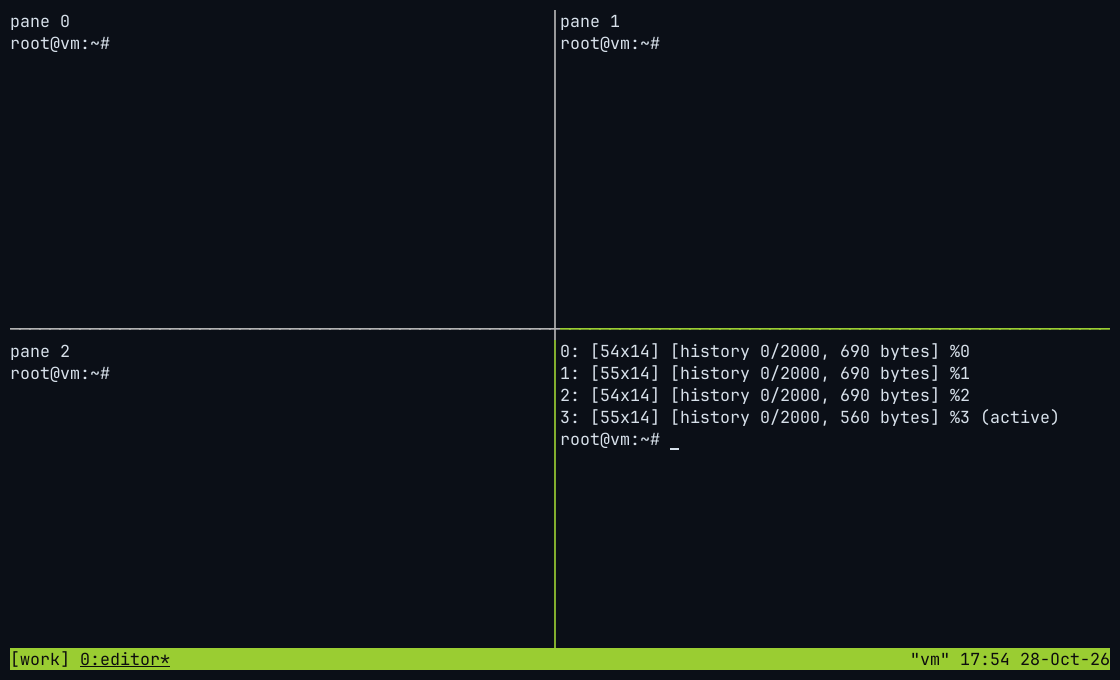
How this was captured
Captured 2026-10-28 17:54 UTC from a real xterm window running tmux 3.8 on Ubuntu 24.04. Nothing is mocked up. The commands that set up the screen:
tmux new-session -d -s work -n editor -x 110 -y 29
tmux split-window -t work
tmux split-window -t work
tmux split-window -t work
tmux select-layout -t work tiled
tmux send-keys -t work:editor.0 'clear; echo pane 0' Enter
tmux send-keys -t work:editor.1 'clear; echo pane 1' Enter
tmux send-keys -t work:editor.2 'clear; echo pane 2' Enter
tmux send-keys -t work:editor.3 'clear; tmux list-panes' Enter
(typed in the terminal) C-b qtmux select-layout main-vertical
tmux select-layout -E # spread out evenly (prefix E)
tmux select-layout -o # undo the last layout change
tmux next-layout # prefix Space; previous-layout goes back
# make the main pane 60% wide in the main-vertical layouts
tmux set -w main-pane-width 60%
# save the current arrangement and restore it later
tmux display -p '#{window_layout}'
tmux select-layout '<the string it printed>'In tmux 3.8, saved layout strings are a small JSON format that includes floating panes; the older format that tmux 3.4 prints, such as f91d,120x40,0,0{60x40,0,0,0,59x40,61,0,1}, is still accepted. A layout string only applies to a window with the same number of panes or fewer.
Pane numbers and pane titles
Quick answer
How do I see pane numbers?
Press Ctrl+b q. A big number appears in each pane for one second; press a number while it is shown to jump to that pane. tmux list-panes prints them too.
Panes are numbered from 0 in each window, in layout order, and renumber when one closes. To start at 1 and give yourself longer to read the numbers:
setw -g pane-base-index 1
set -g display-panes-time 3000
Every pane also has a title. Programs can set it, and you can name panes yourself: Ctrl+b T (new in tmux 3.8) asks for a title, or run tmux select-pane -T logs. To show numbers and titles on the pane borders all the time:
set -g pane-border-status top
# optional: what the border shows (this is close to the 3.8 default)
set -g pane-border-format '#{pane_index} "#{pane_title}"'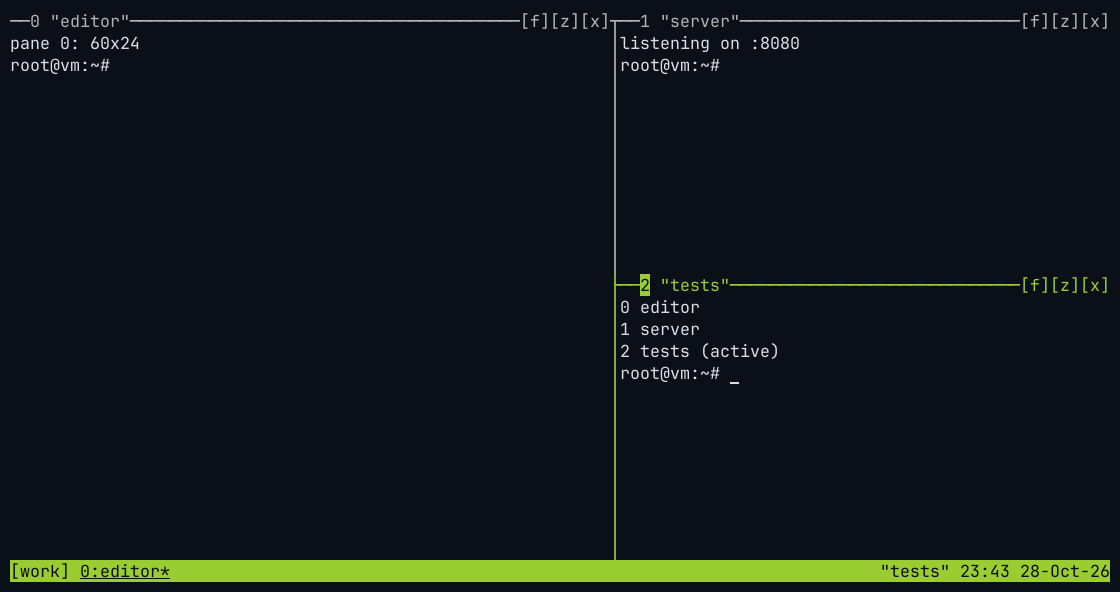
How this was captured
Captured 2026-10-28 23:43 UTC from a real xterm window running tmux 3.8 on Ubuntu 24.04. Nothing is mocked up. The commands that set up the screen:
# ~/.tmux.conf: set -g pane-border-status top
tmux new-session -d -s work -n editor -x 110 -y 25
tmux split-window -h -t work -l 45%
tmux split-window -v -t work:editor.1
tmux select-pane -t work:editor.0 -T editor
tmux select-pane -t work:editor.1 -T server
tmux select-pane -t work:editor.2 -T tests
tmux send-keys -t work:editor.0 'clear; tmux display -p -t "$TMUX_PANE" '"'"'pane #{pane_index}: #{pane_width}x#{pane_height}'"'"'' Enter
tmux send-keys -t work:editor.1 'clear; echo '"'"'listening on :8080'"'"'' Enter
tmux send-keys -t work:editor.2 'clear; tmux list-panes -F '"'"'#{pane_index} #{pane_title}#{?pane_active, (active),}'"'"'' Enter
The [f][z][x] on each border are 3.8 mouse controls: float or tile the pane, zoom it, and kill it. They appear when the mouse is on. To stop programs from renaming your panes, set allow-set-title off.
Synchronize panes: type in all panes at once
Quick answer
How do I send the same keys to every pane?
Turn on the window option: tmux setw synchronize-panes on. Everything you type now goes to all panes in the window. Turn it off with tmux setw synchronize-panes off.
There is no default key for it. This binding toggles it (an on/off option set without a value flips) and shows the new state:
bind S setw synchronize-panes \; display 'sync #{?synchronize-panes,on,off}'Synchronized input skips panes that are in a mode, such as copy mode. It is handy for running the same command on several servers, each SSH session in its own pane, but check every pane before pressing Enter on anything destructive. For scripted fan-out, send-keys to each pane is safer; see scripting tmux.
Panes with the mouse
The mouse is on by default from tmux 3.8. On older versions (3.4 on Ubuntu 24.04, 3.5a on Debian 13), add set -g mouse on to ~/.tmux.conf.
| Mouse | Does |
|---|---|
| Click a pane | Select it |
| Drag a border | Resize the panes on both sides |
| Right-click a pane | Menu: split, swap, mark, zoom, kill, float |
| Right-click a window name | Menu: swap, rename, kill, new window |
| Click / scroll the status line | Select a window / next and previous window |
| Scroll or drag in a pane | Scroll back and select text (see copy mode) |
| Ctrl+drag on a pane 3.8 | Draw a new floating pane |
Windows: create, rename, switch and close
Quick answer
How do I open a new tmux window?
Press Ctrl+b c. Windows are like tabs: each one holds its own set of panes and appears in the status line as 0:bash, 1:vim and so on, with * on the current one. Switch with Ctrl+b n, Ctrl+b p or Ctrl+b 0–Ctrl+b 9, rename with Ctrl+b ,, and close with Ctrl+b &.
# new window named logs, in a directory, running a command
tmux new-window -n logs -c ~/app 'tail -f log/dev.log'
# new window right after the current one, in the background
tmux new-window -a -d
# rename the current window
tmux rename-window editor
# go to a window by number, name, or the last one
tmux select-window -t 2
tmux select-window -t logs
tmux last-window
# close the current window, window 3, or all windows except this one
tmux kill-window
tmux kill-window -t 3
tmux kill-window -a
# list windows in this session, or in every session
tmux list-windows
tmux list-windows -a -F '#{session_name}:#{window_index} #{window_name} (#{window_panes} panes)'tmux names a window after the program running in it (automatic-rename) until you rename it yourself. Ctrl+b & asks kill-window logs? (y/n) and closes every pane in the window. To find a window, use Ctrl+b w for a tree with live previews, Ctrl+b f to search window names and contents, or the new tmux 3.8 switcher:
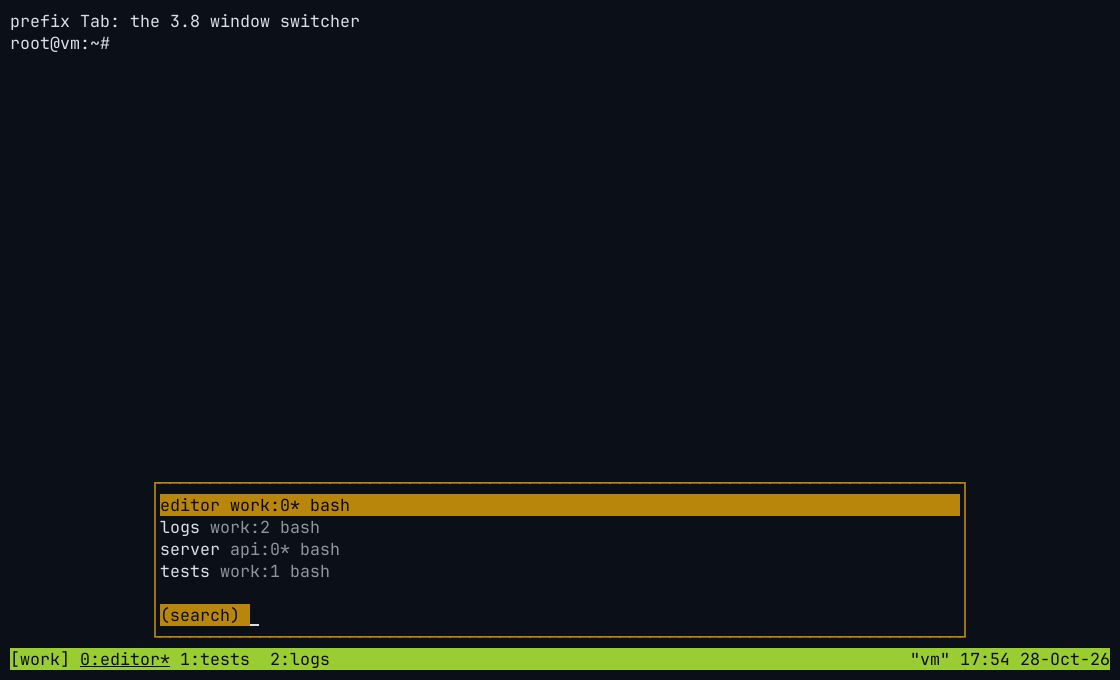
How this was captured
Captured 2026-10-28 17:54 UTC from a real xterm window running tmux 3.8 on Ubuntu 24.04. Nothing is mocked up. The commands that set up the screen:
tmux new-session -d -s work -n editor -x 110 -y 29
tmux new-window -d -t work -n tests
tmux new-window -d -t work -n logs
tmux new-session -d -s api -n server
tmux send-keys -t work 'clear; echo '"'"'prefix Tab: the 3.8 window switcher'"'"'' Enter
(typed in the terminal) C-b TabCtrl+b Tab opens a floating list of windows that narrows as you type (fuzzy matching); Enter goes there, Esc cancels. Ctrl+b Shift+Tab does the same for sessions. Both run the new switch-mode command.
Move, swap and renumber windows
Quick answer
How do I reorder tmux windows?
Swap the current window one place left or right with tmux swap-window -t -1 (or +1), or press Ctrl+b . and type a new number to move it. tmux move-window -r closes the gaps in the numbering.
# move the current window to number 5
tmux move-window -t 5
# swap the current window with the one to its left / right
tmux swap-window -t -1
tmux swap-window -t +1
# renumber all windows 0, 1, 2… (or from base-index)
tmux move-window -r
# move window "logs" from session work to session api
tmux move-window -s work:logs -t api:# number windows and panes from 1, so they match the keyboard
set -g base-index 1
setw -g pane-base-index 1
# close gaps automatically when a window is killed
set -g renumber-windows on
# move windows left and right with prefix Shift+Left/Right
bind -r S-Left swap-window -d -t -1
bind -r S-Right swap-window -d -t +1The -d keeps you on the moved window after the swap. Rebinding Ctrl+b Shift+← replaces its default, which moves the visible part of a window larger than your terminal. With the mouse, right-click a window name in the status line and choose Swap Left or Swap Right.
Floating panes (tmux 3.7 and 3.8)
tmux 3.7 added floating panes: panes that sit above the tiled layout, like a pop-up you can keep working in. Ctrl+b * opens one, Ctrl+b @ (3.8) toggles the current pane between floating and tiled, and Ctrl+b g (3.8) moves it to a corner or side. They are covered in detail, with modal panes and how they differ from display-popup, in floating panes.
Frequently asked questions
How do I split a tmux pane vertically and horizontally?
Press Ctrl+b % for side-by-side panes (split-window -h) and Ctrl+b " for stacked panes (split-window -v). tmux calls side by side a horizontal split, which is the opposite of Vim's naming.
How do I unsplit or undo a split in tmux?
Close the extra pane with Ctrl+b x (then y), or type exit in it. To keep only the current pane, run tmux kill-pane -a. To hide the others temporarily, zoom with Ctrl+b z.
How do I close a pane without the confirmation prompt?
Add bind x kill-pane to ~/.tmux.conf and reload it. tmux kill-pane run from a shell never asks.
How do I resize panes with the keyboard?
Press the prefix, then Ctrl+arrow to resize by one cell or Alt+arrow to resize by five. Keep pressing the arrow to repeat. On macOS, Alt is the Option key, and your terminal may need "Option as Meta" turned on.
How do I rename a pane?
In tmux 3.8, press Ctrl+b T and type a title. On any version, run tmux select-pane -T name. Turn on pane-border-status top to see titles on the borders.
How do I move a window to another session?
Run tmux move-window -s work:logs -t api: to move window logs from session work to session api. link-window shows the same window in both sessions instead.
Why does my new pane open in the wrong directory?
By default new panes and windows start in the session's start directory. Add -c "#{pane_current_path}" to your split and new-window bindings to open them where the current pane is.
What is the difference between a pane and a window?
A window is a full screen, shown as a tab in the status line. A pane is one terminal inside a window; one window can hold many panes. Sessions hold windows; see sessions.
Keep learning
Something wrong or out of date on this page? Email hello@tmux.app and we will fix it.
↑↓ moveEnter openType a key like % or a command like kill-session